Mac · Apple Silicon
M1 or newer · macOS 15+
Download Mac DMG ↓Download ZIP ↗ CLIP MY SCREEN
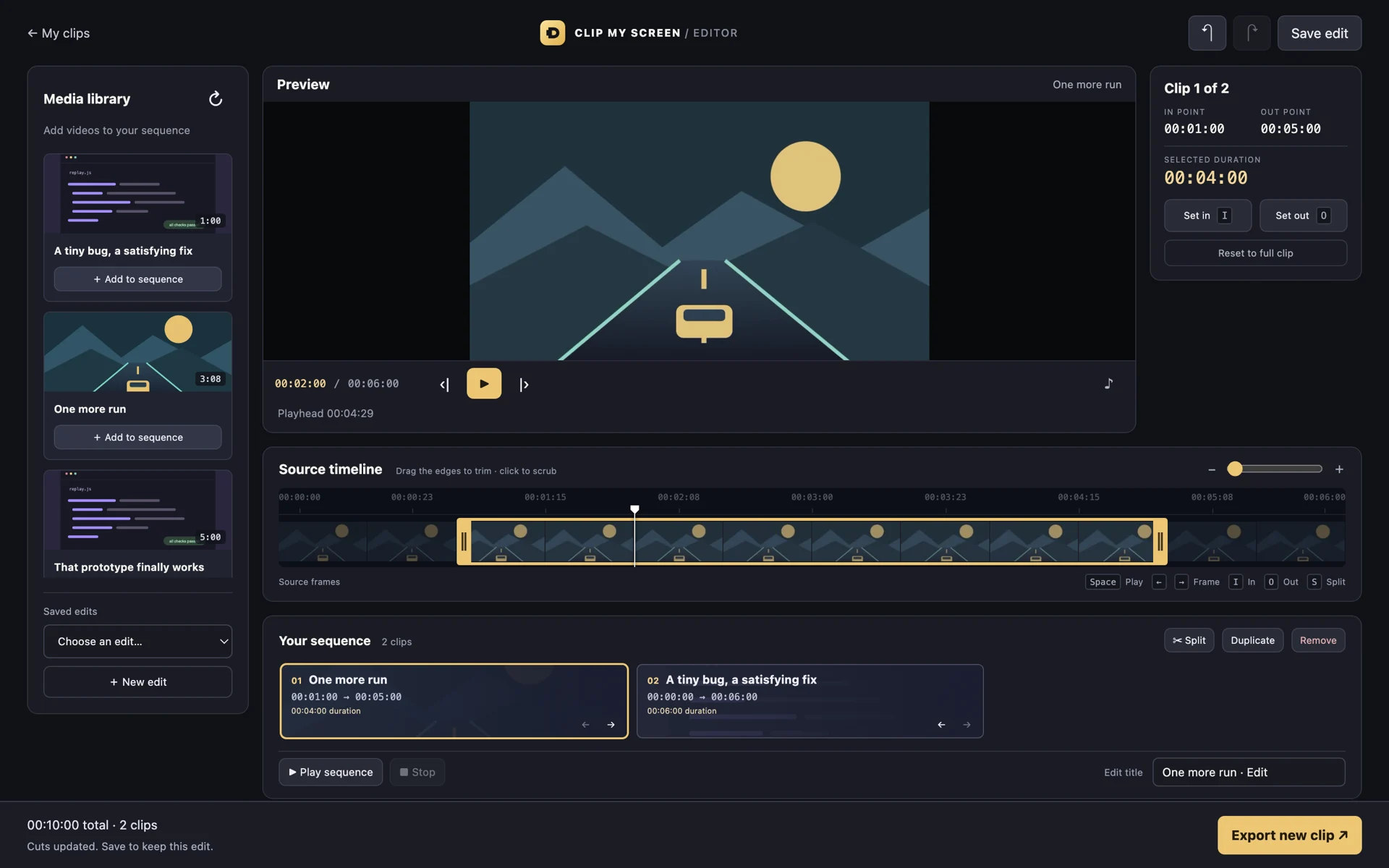
A bug finally reproduces. A game does something brilliant. A teammate explains it perfectly. Save the last 1, 5, or 15 minutes with a shortcut, then make it yours in a visual editor. Scrub, drag to trim, split, and arrange clips without changing your originals.
M1 or newer · macOS 15+
Download Mac DMG ↓Download ZIP ↗Intel processor · macOS 15+
Download Intel Mac DMG ↓Download ZIP ↗Windows 10/11 · Intel/AMD 64-bit
Download Windows installer ↓Download portable EXE ↗Early-release builds: Mac apps are ad-hoc signed and unnotarized; Windows apps are unsigned. Your OS may block or warn about downloads without a trusted publisher signature. No security-bypass launcher is included. Building the source is another option.
A rolling replay buffer keeps up to 15 minutes nearby while capture is enabled. Save a replay, take a screenshot, or record a longer session.
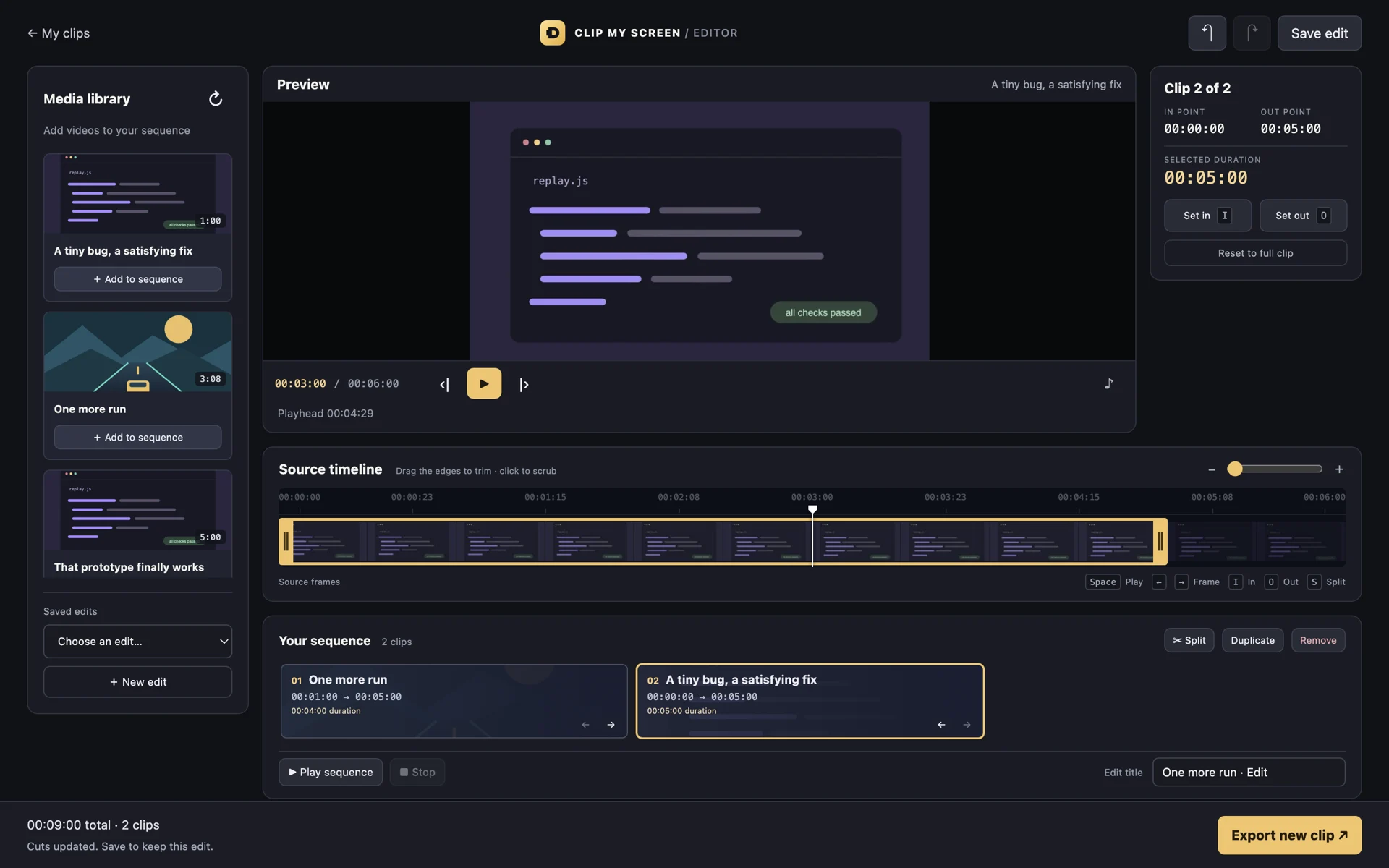
Scrub a thumbnail timeline, drag trim handles, split at the playhead, and arrange a sequence. Frame stepping and undo help you get the cut right.
Create a revocable link for a saved capture. Local sharing works on your network; internet sharing is an optional tunnel.
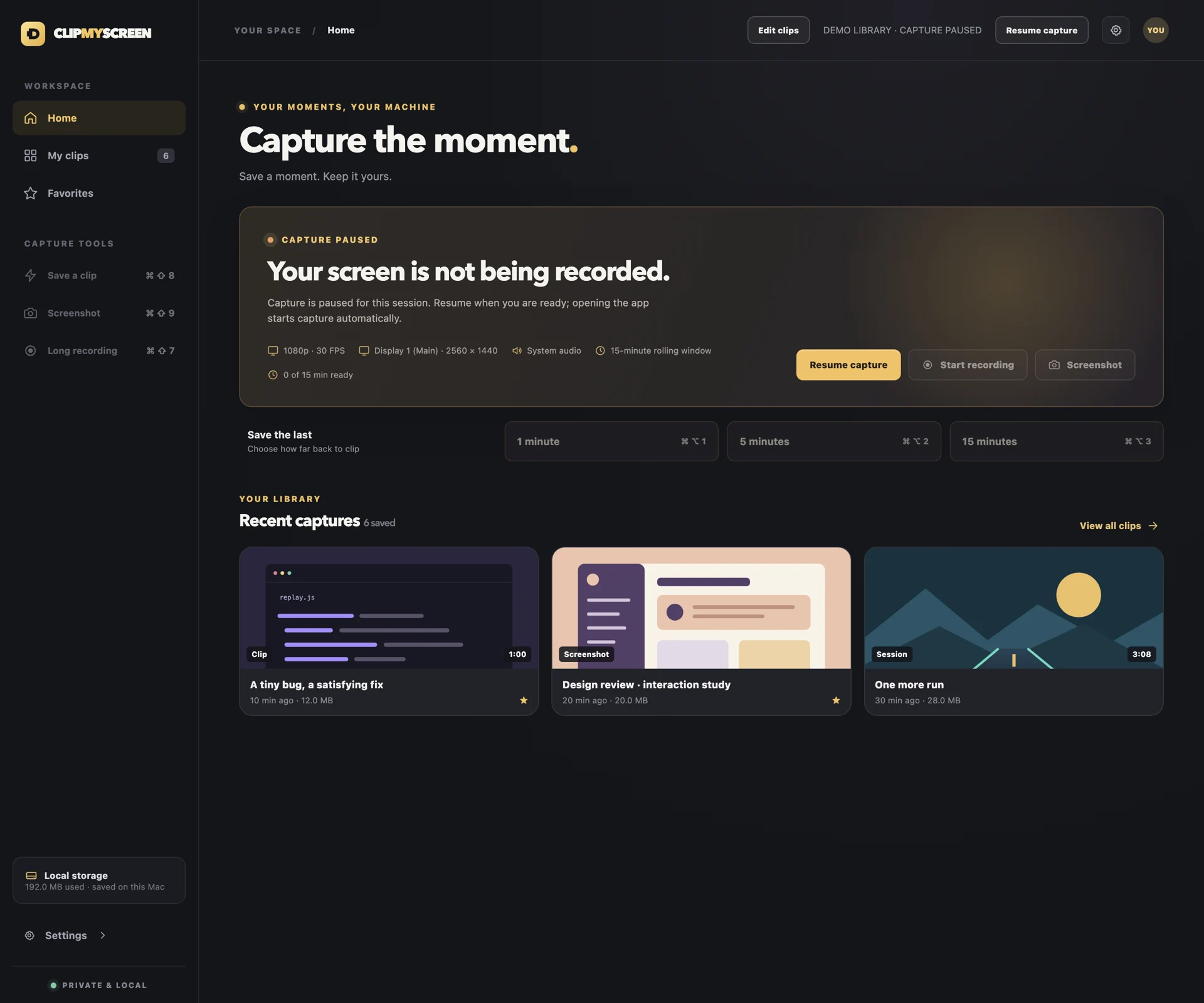
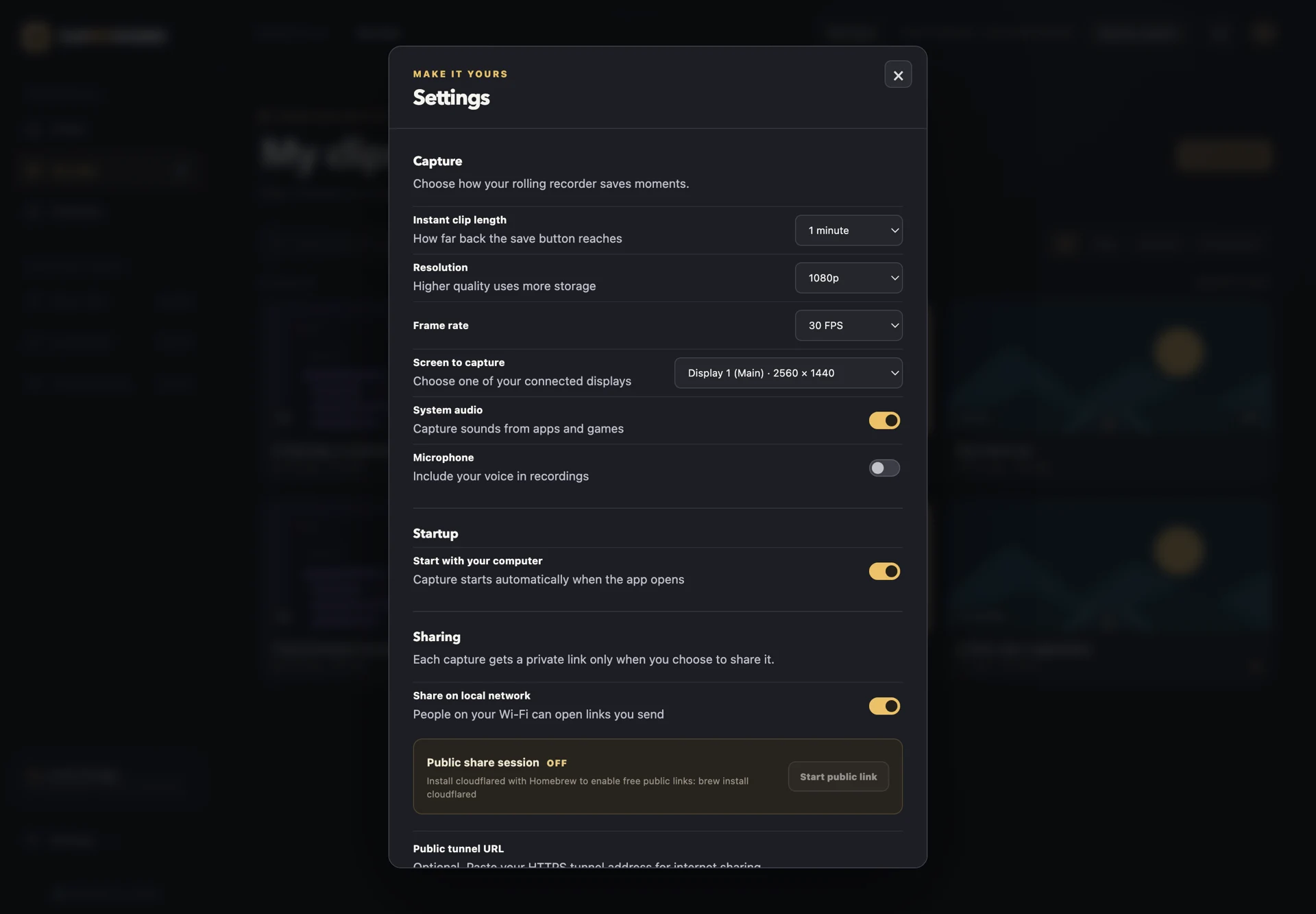
Capture starts when the app opens. First-run setup helps you choose a display, resolution, audio, and whether to start with your computer. Pause or quit from the menu bar or taskbar icon whenever you need.
Move through your footage with a thumbnail timeline and a live preview. Set in and out points by dragging, split at the playhead, duplicate a moment, and drag clips into the right order. Save edits to revisit later, or export a new video while your source recordings stay intact.
The app checks for updates when it opens. Choose Update now to pause capture and download the verified installer; active recordings and clip exports finish first. Installation is manual.
Source code is MIT licensed. Bug reports, accessibility fixes, and careful real-device performance measurements are welcome. This is early software: live capture performance, audio sync, and the reported Finder privacy-indicator behavior still need broader validation.